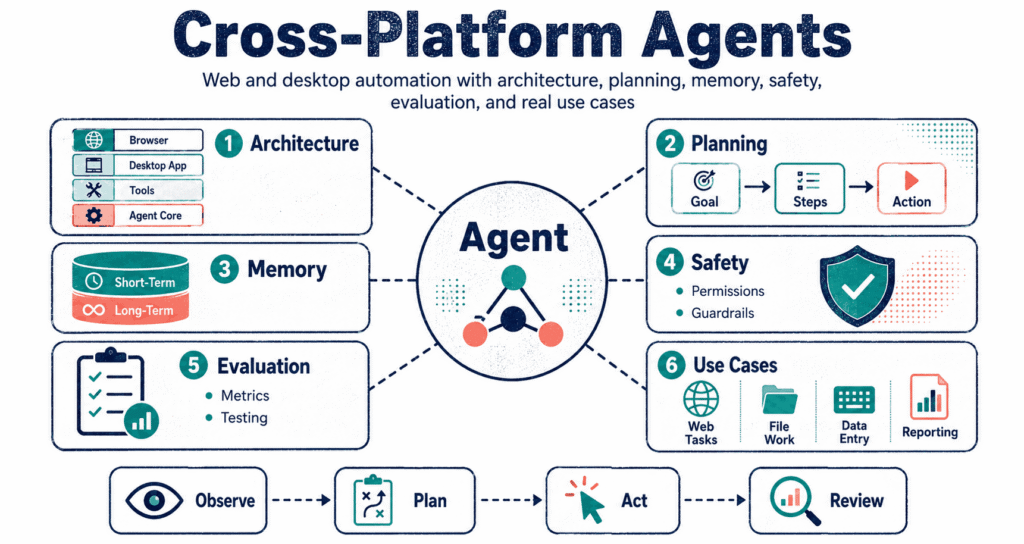
They hijack everything. Instead of sitting around waiting for questions, these setups take a goal and physically take over your browser and your local operating system to finish the job—clicking buttons, filling out random web forms, ripping data from PDFs, and driving entire workflows across completely disconnected interfaces.
Why Cross-Platform Agents Matter
Real work hates APIs. An analyst has to pull numbers from a terrible web portal, scrub the garbage out in Excel, verify an email attachment, force an update into Salesforce, and then format a final presentation for the boss.
Old automation completely breaks down here because every single platform speaks a completely different language—browsers give you the DOM, but desktop apps force you to hunt down individual pixels, guess at keyboard shortcuts, and fight weird file dialogs. They fail constantly.
Chatbots just talk. Agents actually do the work—jumping between totally different interfaces, remembering what they already clicked, fixing their own mistakes, and pulling off massive jobs that span the entire operating system without crashing the whole machine.
Here is the reality: you are looking at a messy, patched-together engine connecting an LLM directly to screen readers, mouse controls, memory banks, and hard permission blockers to force the machine to do actual work.
From Chatbots to Computer-Using Agents
It drives the mouse. Standard chatbots spit out text, and basic tool-based systems might hit an endpoint or run a script, but a computer-using agent literally sits at the keyboard—reading the screen, figuring out the next move, and physically clicking the buttons.
This changes the game. Corporate environments still run on ancient legacy software, weird internal portals, unreadable PDFs, and desktop apps that haven’t seen an update since 2005, forcing bots to take over these terrible interfaces exactly like a human intern would.
Keep pushing forward. Think about it like this: it is basically the ReAct prompting loop on steroids, forcing the bot to stare at the screen, think through the mess, pick an action, fire it off, and stare at the result.
The Core Agent Loop
It just loops. The setup runs on a massive cycle where you give it a target, let it look at the screen, wait for it to pick a tool, fire the action, and see if anything actually happened.
Things break fast. But here’s the catch—the real world breaks this loop constantly when sites lag out, buttons shift around, random desktop notifications block the screen, and legal confirmation pages pop up out of nowhere demanding human signatures.
Cross-Platform Agent Execution Loop
Goal
Environment
Step
Action
Result
Escalate
The trick is validation. Weak code just assumes the mouse click worked and moves on, while a smart system stops, checks if the CSV actually hit the downloads folder, and verifies the screen before proceeding to the next step.
Web Agents vs Desktop Agents
They completely guess. Web bots cheat by reading the HTML code directly to find buttons and text fields, but desktop bots have to figure out everything visually from raw screenshots—hunting down icons, guessing where the menus hide, and tracking the cursor blindly.
Browsers make it easy. Desktop work is a complete nightmare because you have to pull meaning out of raw pixels without any hidden structural tags to guide you, which causes the bot to completely lose its mind if you change your wallpaper.
You need both. A browser bot can’t open an Excel file on your hard drive (which happens constantly), and a desktop bot is absolute overkill for pulling a simple weather forecast from a clean API endpoint.
| Agent type | Environment | Main observation method | Main challenge |
|---|---|---|---|
| Web Agent | Browser, dashboards, web apps. | DOM, screenshots, page code. | Pop-ups, weird logins, shifting pages. |
| Desktop Agent | Files, local apps, OS windows. | Screenshots, OCR, cursor checks. | Pixel hunting, file dialogs, hidden menus. |
| Cross-Platform Agent | Both at once. | Mixing web and local data. | Keeping track of the mess, safe handoffs. |
Core Components of Cross-Platform Agents
It needs a shell. Building one of these things requires strapping a ton of extra parts onto the main model so the system can figure out what it can see, what it is allowed to touch, and how hard to fail when things go sideways.
It watches everything. The observation layer sucks up the data, pulling HTML from the browser, snapping pictures of the desktop, tracking the mouse, checking the active window title, and digging through the local file system.
The safety layer screams. The planning section maps out the attack, the action layer actually clicks the mouse and hits the keys, and the safety engine throws up a massive wall if the bot tries to do something stupid.
Observation: How Agents Understand the Environment
Blind bots crash instantly. On the web, the system pulls clean data like button labels, dropdown choices, and URLs directly from the code, completely bypassing the need to actually look at the screen like a human.
Local desktops force the bot to rely on raw computer vision to figure out what is going on. It has to stare at a screenshot, figure out if a blob of pixels is a save button or just a weird logo, check if a menu actually opened, and hunt down the active window. It hunts.
Mix it all together. The best builds cheat by pulling the perfect DOM data when they can, ripping the file metadata to prove a download worked, and only falling back to raw screenshots when the system completely hides the code.
Design rule: never force the bot to guess from a picture if you can just read the raw code by pulling the APIs and DOM elements first, only using images to fill the gaps.
Action: How Agents Operate Web and Desktop Interfaces
Action means hitting the gas. It clicks links, dumps text into forms, pulls down files, hits keyboard shortcuts, and drags windows around the screen just to force the application to do what you want.
Aim for the code. Telling the script to click a specific named button works forever, but ordering it to click a specific pixel completely destroys your workflow the second someone buys a monitor with a slightly different resolution.
You have no choice. Ancient virtual machines and heavily locked-down software force you to drop back to clicking raw coordinates—but you better wrap those actions in heavy safety checks before you end up accidentally deleting a production database.
{
  "goal": "Pull the Q4 numbers and save as Q4-sales.csv",
  "environment": "browser",
  "observation": {
    "url": "https://internal-dashboard.example/reports",
    "visible_text": ["Reports", "Sales", "Export CSV"],
    "active_window": "Chrome"
  },
  "next_action": {
    "type": "click",
    "target": "button Export CSV",
    "requires_confirmation": false
  },
  "validation": {
    "expected_result": "CSV drops into downloads folder",
    "check_method": "file_exists"
  }
}
Planning Across Multiple Applications
Jumping apps requires a plan. A simple request to email the metrics means logging into a portal, grabbing a date range, saving the file, opening a local spreadsheet, making it look pretty, drafting the email, attaching the garbage, and waiting for the boss to say okay.
Chop it into pieces. Smart bots know that grabbing the report is totally fine, but blasting that email out to the client list demands a physical human click before the system does something you cannot take back.
You have to adjust. If you want the deep dive on this, check out how autonomous goal decomposition works, because the environment is way too chaotic to plan fifty steps in advance without crashing.
Memory and State Management
It forgets instantly. A bot without a memory is just a random click generator that has to track the original goal, the files it just downloaded, and the login screens it already cleared, or it will just sit there opening the same window forever.
Clear the cache out. Short-term memory holds the immediate mess—like knowing you just saved a CSV and need to open it—but long-term memory hoards your weird formatting habits and folder preferences, which turns into a massive security nightmare if you start scraping too much personal data.
Draw a hard line. Good setups draw a hard boundary between cold facts and blind guesses, because assuming a file downloaded is a great way to break your script—check out Codeayan’s post on memory management in agents for the technical breakdown.
| Memory type | What it stores | Example | Risk |
|---|---|---|---|
| Task memory | The immediate goal and current roadblocks. | “Step 3: got the file.” | Using old data if it forgets to refresh. |
| Environment memory | Open URLs, window sizes, file locations. | “Chrome is staring at the dashboard.” | The app changes while the bot isn’t looking. |
| User preference memory | Long-term workflow rules. | “Always output as CSV.” | Hoarding too much private data. |
Web Environment Navigation
The web is chaos. Pages load at random speeds, buttons hide until you scroll, ads pop up out of nowhere, and logins expire halfway through the job, forcing the bot to wait it out.
Browser tools cut the noise. Instead of guessing where the button is visually, the script just hunts down the exact CSS selector or accessible ID and clicks it perfectly every single time without breaking a sweat.
Lock down the wallet. Letting a bot freely hit purchase buttons, change passwords, or send messages without a human standing by is asking for an absolute catastrophe.
Desktop Environment Navigation
They control it all. Desktop bots run wild at the OS level, firing up applications, smashing keyboard shortcuts, renaming your folders, reading your PDFs, and dragging windows around the screen.
The designs are a mess. A button might look like a button but completely hide its code, Mac shortcuts don’t work on Windows, and remote desktops add a half-second of lag that completely destroys coordinate-based clicking. It lags.
Box these things in. Lock them in a sandbox, block them from touching system files, and force them to keep a massive log of every single click they make so you can figure out what went wrong later.
The reality check: treat these bots like a brand new intern who has no idea what they are doing by giving them zero permissions, logging everything, and making them ask before they delete anything.
Cross-Platform Challenges
Clicking is the easy part. The actual nightmare is tracking context when you jump from a browser to a local folder—the bot has to verify the download, open Excel, tweak the columns, save the file, and then somehow find its way back to the email client without getting lost.
Error recovery is a joke. If a webpage completely freezes or a weird security dialog pops up, a human just clicks the X—but a bot will completely panic unless you hardcode a fallback plan to refresh the page or scream for help.
Logins ruin the flow. Browsers rely on cookies, but your desktop relies on OS accounts and hard folder permissions, meaning the bot has to somehow juggle completely different security setups without accidentally leaking your passwords.
| Challenge | Why it happens | Practical mitigation |
|---|---|---|
| Layout changes | Sites update their UI every single day. | Rely on code tags, not screen coordinates. |
| State confusion | Too many tabs and apps open at once. | Force the bot to double-check the active window. |
| Long-horizon failure | Tiny mistakes snowball into a massive crash. | Verify every single step before moving on. |
| Unsafe actions | The bot clicks the delete button. | Put a human in the loop for anything dangerous. |
Safety and Human-in-the-Loop Control
Shut it down. You cannot let these things run blind because they have the power to blast out emails, wipe databases, and spend actual money, meaning a single bad loop can cause a catastrophic corporate incident.
Put a human in. Human-in-the-loop setups let the bot do the boring stuff but throw up a massive red flag when things get risky—pulling data is fine, but wiring money requires a physical human to hit the approve button.
Build a risk ladder. Low-risk stuff runs free, medium-risk needs a quick glance, and high-risk actions are hard-blocked until you sign off—go read Codeayan’s breakdown on human-in-the-loop autonomous agent governance if you want to see the actual mechanics.
| Risk level | Example action | Recommended control |
|---|---|---|
| Low | Read a page, pull a file. | Let it run. |
| Medium | Write a draft, update a cell. | Check it before it moves. |
| High | Send emails, spend money, delete files. | Hard stop until a human clicks approve. |
| Blocked | Try to steal passwords or bypass security. | Kill the run instantly. |
Security Risks in Web and Desktop Agents
It gets hacked fast. The internet is packed with garbage data trying to hijack your system, and a hidden line of text in a PDF can literally command your bot to ignore its original instructions and forward your private files to a random server.
Build a massive firewall. You have to build a hard boundary between your instructions and the wild data, meaning the bot can read a file, but it absolutely cannot let that file dictate its next move.
Lock down the access. Only hand over the exact folders and APIs it needs to survive the next five minutes, mask the sensitive numbers, and keep a paper trail of every weird move it makes.
- Never let random data overwrite your system rules.
- Wall off the files and apps.
- Kill any move that tries to leak passwords.
- Force a human click for anything dangerous.
- Log every single mistake.
Evaluation: How Do We Know an Agent Works?
You have to check work. Text generation is easy to grade, but grading these agents is a massive headache because you have to physically check if the shopping cart updated, if the local file actually saved, or if the spreadsheet formula actually calculates the right tax rate.
Standard scoring is a joke. The big benchmarks like WebArena and OSWorld throw the bots into real computer environments specifically to prove that you cannot just read the text output to figure out if the bot actually did the job.
Stop using toy examples. Force the bot to run your actual nightmare workflows—pulling weird PDFs, fighting with a terrible CRM, and formatting raw data—and grade it on whether it actually survived the trip.
Designing a Cross-Platform Agent Architecture
Less is always more. Do not hand the bot the keys to the entire machine—lock it down to a tiny toolbox where it can read the screen, type some text, click a few links, and beg for help when it gets stuck.
The orchestrator runs the show. It looks at the screen, asks the model what to do, runs the idea past the security rules, and only fires the click if everything lines up perfectly.
The policy engine saves you. The AI might confidently demand to delete the user account, but the policy engine just laughs and throws up an approval screen instead of letting the script completely ruin your day.
while job_is_a_mess:
    observation = grab_screen_data(
        browser_state=True,
        desktop_screenshot=True,
        file_system_state=True
    )

    proposed_action = agent.guess_next_move(
        user_goal=goal,
        observation=observation,
        task_memory=memory
    )

    policy_decision = policy_cop.inspect(proposed_action)

    if policy_decision == "blocked":
        kill_it_and_explain()

    elif policy_decision == "needs_human":
        beg_for_approval(proposed_action)

    else:
        result = do_the_thing(proposed_action)
        memory.update(result)
        validate_progress(result)
Use Cases for Cross-Platform Agents
They ignore the industry. These bots shine when you have to drag data across completely disconnected, terrible systems, and they don’t care if you are running a hedge fund or a local shoe store.
They just grind endlessly. Finance guys use them to rip numbers out of portals and shove them into Excel, HR uses them to scrape LinkedIn and blast out interview schedules, and operations teams just let them sit there hitting refresh on a shipment tracker all day.
Check the billing logs. Support teams love them for digging up account history and drafting apology emails, but you better force the bot to ask for permission before it starts handing out free refunds to everyone.
| Domain | Cross-platform workflow | Human approval needed? |
|---|---|---|
| Finance | Rip reports, fix spreadsheets, write summaries. | Yes, before you email the board. |
| HR | Scrape resumes, update tracking boards. | Yes, before you reject a candidate. |
| Support | Check tickets, pull billing logs. | Yes, before you hand out refunds. |
| Analytics | Pull data, run python, update charts. | Only if the numbers are confidential. |
Web-First, Desktop-First, or Hybrid?
Keep it completely simple. You don’t always need the massive cross-platform setup—if you only deal with websites, a web-bot is ten times faster and significantly less likely to accidentally format your hard drive.
You have to mix it. Hybrid builds only make sense when you absolutely have to drag a web download into a local desktop app, tweak the numbers, and push the output back up to the cloud.
Build for reality here. Giving a script root access to your entire operating system just to scrape a Wikipedia page is an incredibly stupid idea that will eventually end in a massive security breach.
Best Practices for Building Cross-Platform Agents
Start incredibly small today. Pick one single, boring task—like downloading a specific sales PDF—and nail it perfectly before you try to build a massive bot that runs your entire company.
Ditch the screen coordinates entirely. Use APIs and CSS selectors if you have them, and only fall back to clicking raw pixels if you are completely locked out of the code and have absolutely no other options.
Trust absolutely nothing here. If the bot clicks a download link, force it to check the local hard drive to prove the file actually exists before it moves on to the next step in the chain.
- Pick one boring task and master it.
- Use the raw code instead of guessing from pictures.
- Check the hard drive after every download.
- Lock the dangerous buttons behind a human click.
- Log every single move.
- Test it until it breaks.
Common Mistakes to Avoid
Keep it boxed in. Giving the script full control on day one is a disaster that looks awesome in a demo video, but in the real world, it will just wildly click around your screen and delete your files.
Silent failures are the worst. The bot clicks a broken link, the file doesn’t download, and the script just keeps happily running steps against an empty folder without ever realizing it completely failed.
The internet hates you entirely. Do not let random PDFs and websites dictate what your script does next, because that data will eventually hijack your bot and force it to do something incredibly stupid.
- Never let a random website hijack your rules.
- Do not trust pictures if you can read the code.
- Never skip the human approval on deletes.
- Stop caring if the bot simply looks busy.
- Never stash passwords in the open memory block.
The Future of Cross-Platform Agents
They still stumble around. These systems are still messy—they break, they lag, and they completely lose their minds if a website changes its font size—so we still need better memory and much safer guardrails.
The end game is obvious. Future bots will just instantly swap between API hits, DOM scraping, and raw pixel clicking to find the absolute fastest way to get the job done without crashing the system.
Look past the hype. The winners won’t be the companies with the coolest demo videos, because the real winners will be the ones whose bots actually finish the boring work without accidentally wiping the production servers.
Key Takeaways
- Cross-platform bots hijack both your browser and your OS to finish the job.
- They run a massive loop of looking, thinking, acting, and checking.
- Web bots cheat by reading the code, while desktop bots suffer through raw screenshots.
- Smart builds double-check everything instead of just hoping the click worked.
- You absolutely must force a human to approve anything involving money or deleted files.
- Start small, lock down the permissions, and track every single failure.
Conclusion
It works right now. This completely leaves standard chatbots in the dust, because you are building a system that drags files out of a browser, dumps them into local software, completely rewrites the data, and fires it back into a web portal.
Power ruins things quickly here. You cannot just let a script run wild on your desktop—you have to lock it down with hard permissions, forced human sign-offs, and massive audit logs because you are building a highly restricted digital worker, not a free-thinking entity.
Start with one miserable task. Throw up the guardrails, force the bot to prove it did the work, and slowly let off the brakes as the system proves it won’t crash your computer and burn your entire workflow to the ground.
Further reading: Dive into OpenAI’s Computer-Using Agent overview, hit up Anthropic’s computer use documentation, check out Google’s Computer Use documentation, and run through the tests at WebArena and OSWorld.